Agencies
Apply client feedback without re-proofing the page
Paste the client's note as the instruction, scope it to the section they meant, and send back a page where only that section changed.
An SEO content editor you instruct in plain words. It changes that section, and only that.
Free to start. No account or card needed.
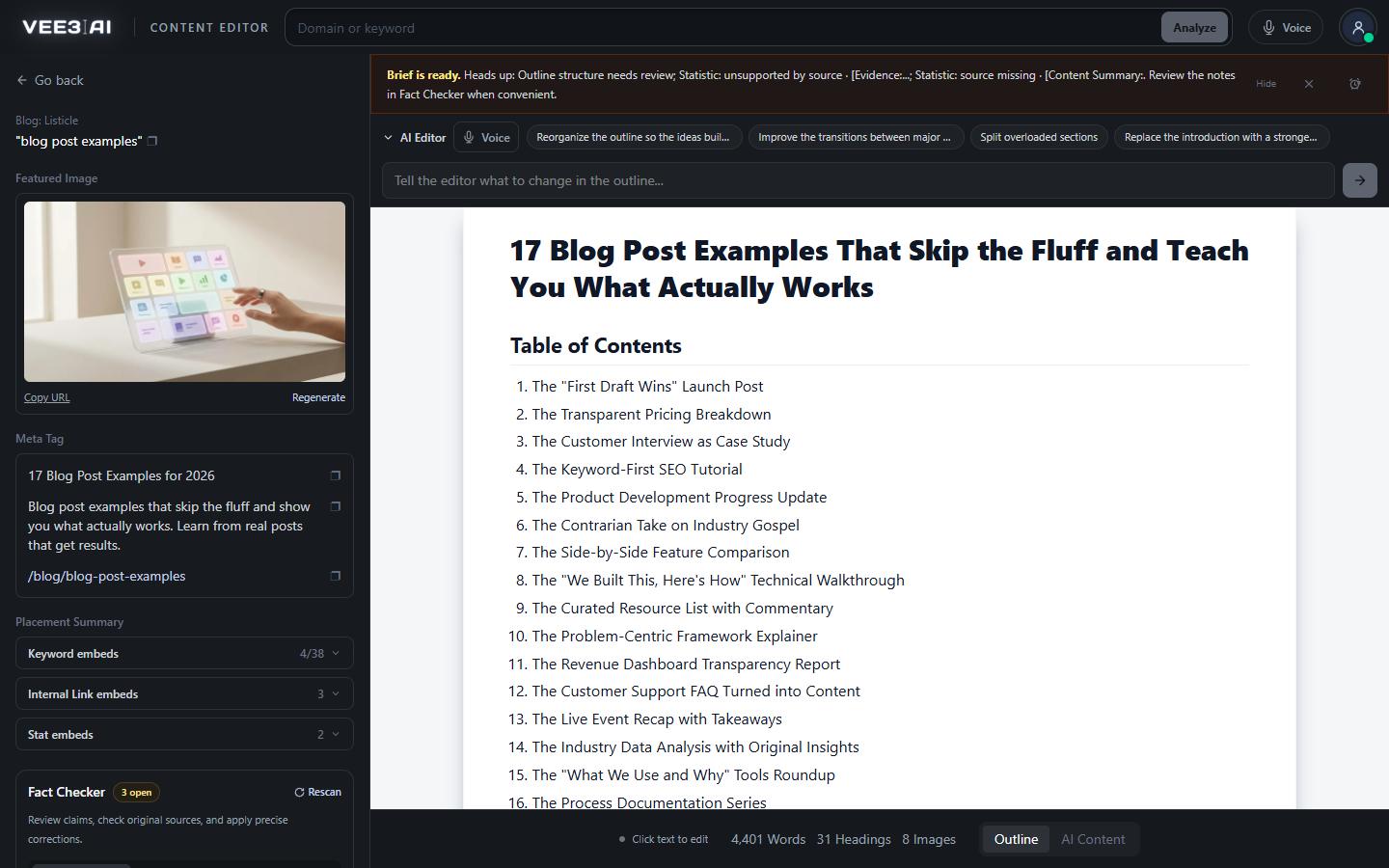
The model returns replacements, sections or insertions; the server rebuilds the page and leaves everything else byte-identical.
Vee3.ai's SEO content editor lets you tell the AI what to change and get back only that change. Sections you didn't touch stay byte-identical, factual passages are locked while it rewords, and any new statistic must link to the exact page it came from. Use it on drafts from the AI content writer, or import a page you already have and edit that.
Ask a typical AI editor to tighten one paragraph and it hands back a whole new document. A link drifts, a statistic loses its source, a keyword you placed on purpose disappears, and you proofread 2,000 words to review one change. Vee3.ai asks the model for changes only, as exact replacements, whole sections or insertions, and the server reassembles the page. Untouched sections are byte-identical by construction, not by hope.
When you ask it to humanize or reword, passages that carry factual claims are swapped for placeholders the model can't touch. Edits that drop images are rejected, edits outside a targeted section are discarded, patches that break keyword targets are refused, and sentences the model adds without support are removed. If an edit can't be applied, your document stays as it was and your request is saved as a retry draft.
Ask for fresh statistics, reviews, quotes or prices and the editor searches the web and reads the pages before it writes. Every new or changed statistic links its exact source in the same paragraph. Reductions work too: ask it to keep only two stats and it trims the rest. When the edits are done, run the fact checker to test each number, quote and date against the page it cites.
The editor knows the page's full context: its keywords and targets, your brand, related pages and your sitemap URLs. The sidebar's Placement Summary lists every keyword with its count against target, every internal link and every statistic embed, and clicking one highlights where it landed. That is how semantic coverage gets checked here: against targets measured from ranking pages, not a generic term list. For links across the whole site, use the internal linking tool.
Click any text to edit it yourself; changes save when you click away or press Ctrl or Command + S. Alt-click a heading to scope the AI to that one section. The Outline and AI Content tabs each keep their own undo. With voice mode on, you can say the change instead of typing it. Teammates with view-only access can read and copy, but not edit.
Big documents are split into 30,000-character work units of up to 50 sections, so documents up to 2,000,000 characters can be edited. Import pasted text, a public page URL, or a TXT, Markdown or HTML file up to 2 MB, add a focus keyword and a site for internal links, and start editing without an account. The draft stays in your browser until you choose Save this draft. If a teammate saves a newer version while you work, the editor tells you and offers Copy draft or Load latest.
Make the change you asked for, and nothing else
Import a page or open a draft in a guest workspace with no account or card, and send your first instruction.
Type or speak the change, or Alt-click a heading to scope it to one section.
The editor receives the full page context: keywords and targets, brand, related pages and sitemap URLs.
The model returns only the changes; guardrails reject anything that breaks images, scope or keyword targets.
The new version is saved, and Undo swaps back to the previous one.
Agencies
Paste the client's note as the instruction, scope it to the section they meant, and send back a page where only that section changed.
Content leads
Import a live post by URL, ask for fresh statistics, and get each one linked to the page it came from.
SEO specialists
Placement Summary shows which keywords are under target and where links sit.
A tool for improving a page against search goals: keyword coverage, structure, internal links and accuracy, not just grammar. Vee3.ai's takes instructions in plain words, returns only the changes you asked for, and shows every keyword, link and statistic in a Placement Summary beside the page.
The one that improves a page without breaking what already works. Look for edits scoped to what you asked, facts that can't change during rewording, new statistics with real sources, and keyword targets drawn from pages that rank. Try one instruction on a page you know well and compare the before and after.
No. It handles the mechanical work fast: placement, sourcing, trimming, section rewrites. A human editor still judges argument, tone and whether the page deserves to rank. Most teams use both, with the editor reviewing a smaller, cleaner set of changes.
Yes. Import pasted text, a public page URL or a file, and optionally add a focus keyword and a site for internal links. You don't need an account: the draft stays in your browser until you choose Save this draft.
It swaps the document with the version saved just before your last change, whether the AI made that change or you did. It holds one step, so pressing it again brings the change back, like redo.
Your document stays as it was, and your request is saved as a retry draft so you can adjust it and send it again. If you switched tabs, the draft comes back when you return to that tab.
They can read and copy the document. Editing, publishing, Fact Checker rescans and AI tools are turned off for them.
Start a workspace without an account and watch the roadmap build itself. Save it to an account whenever you are ready.